
EV+C Material System
EEVEE + Cycles Materials
For Blender
For use with KIT OPS Pro or KIT OPS Free
By Chipp Walters
For information on using the ULTRA-MAT addon please visit https://cw1.me/ultramat-docs
Overview
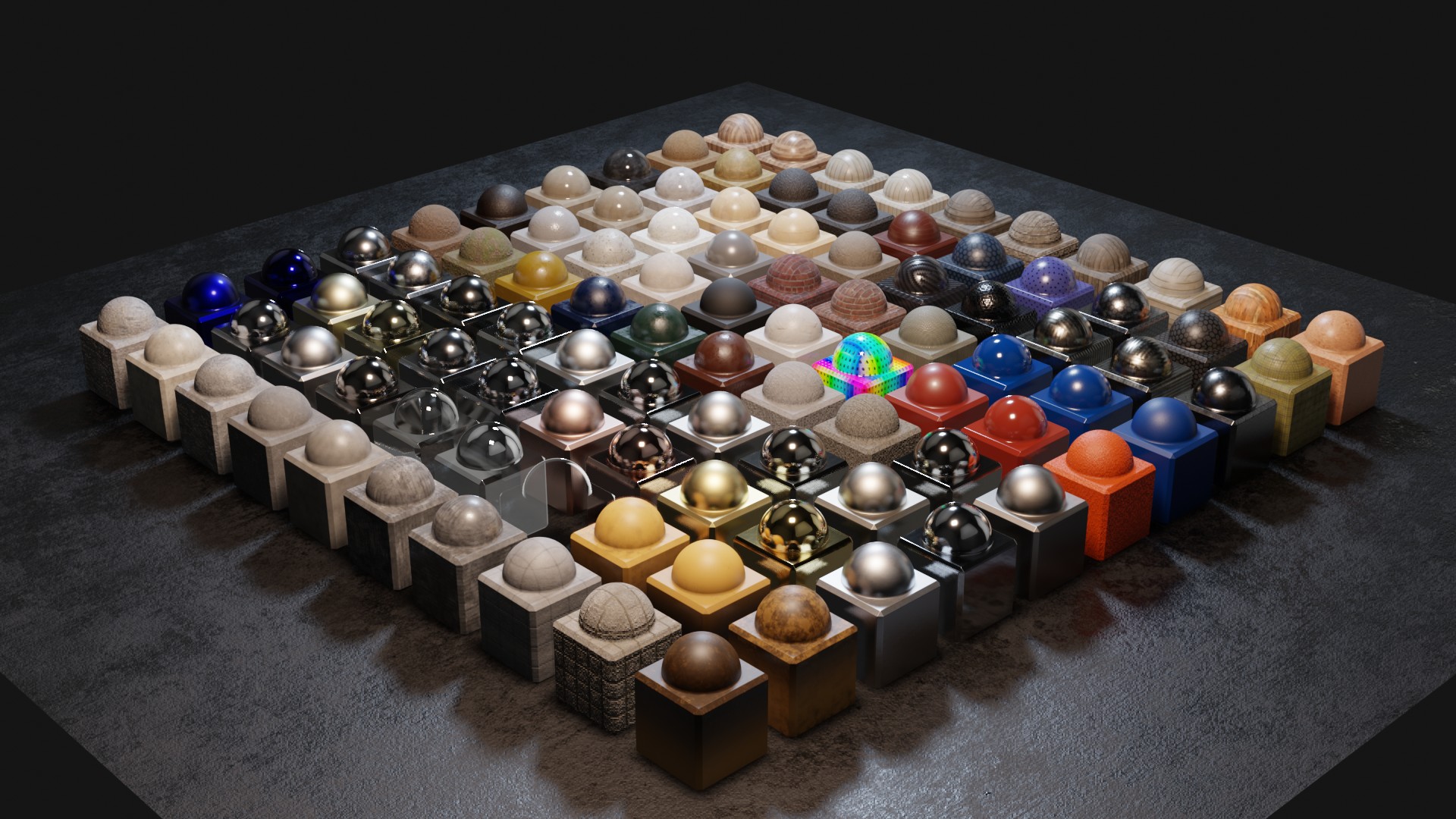
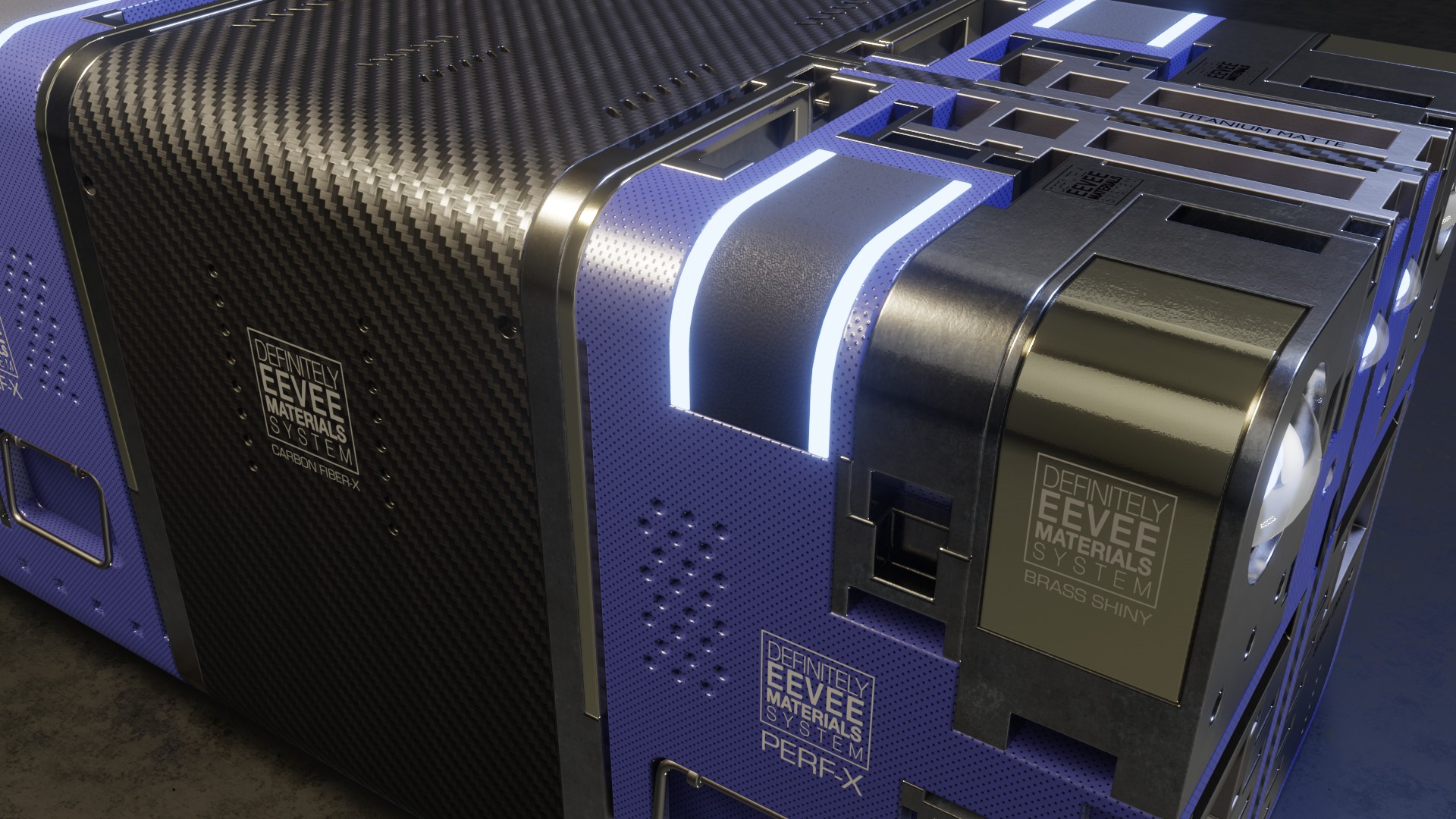
The EV+C Material System (EEVEE + Cycles Materials) is a systematized library of 220+ curated, photoreal materials for building realistic scenes and objects in Blender. It takes a single, consistent approach to shading so every material renders the same way in both EEVEE and Cycles — no per-engine variants to maintain.
Materials are organized as KIT OPS KPACKs and applied with a click, so you can drop a finished look onto any object in seconds. There’s no UV mapping required, and because the system is built on a standardized structure, you can create an effectively infinite set of derivative materials from the ones included.
Video tutorials
- Overview video:
- Full training playlist: Watch all training courses on YouTube
Author your own materials with Ultra-Mat
The 220+ materials are just the start. Ultra-Mat is the companion add-on that lets you build your own CW Ultra materials from any texture you have. Point it at a single diffuse image and it wires up a full material for you — roughness, normal, and height are generated automatically. Hand it a complete PBR set and it loads all four maps, auto-detecting roughness, normal, and displacement files by name. Either way you get one material that renders the same in EEVEE and Cycles, with triplanar mapping (no UV unwrapping), anti-tiling, and procedural wear built in.
What makes Ultra-Mat different is ownership. Every control lives inside the material itself, so your materials keep working and stay tunable even without the add-on installed. Save them straight into your KIT OPS KPACKs or Blender’s Asset Browser and they become reusable production assets — the same standardized structure that lets you spin an infinite library of derivatives from the ones you already have. Ultra-Mat requires Blender 5.0+.
Read the full Ultra-Mat manual at cw1.me/ultramat-docs.
Compatibility
Blender: 3.0, 3.1, 3.2, 3.3, 3.4, 3.5, 3.6, 4.0, 4.1, 4.2, 4.3, 5.0 — rendering in EEVEE and Cycles.
The materials library works across Blender 3.0–5.0. The optional Ultra-Mat add-on — for authoring your own self-contained CW Ultra materials — is a separate tool that requires Blender 5.0+. See cw1.me/ultramat-docs.
What’s included
- 220+ photoreal materials compatible with both EEVEE and Cycles
- FREE version of KIT OPS for browsing and placing the materials
- Dirt Group Node — adds altitude-mapped and ambient-occlusion dirt to any material
- Decals, Bevels, and Chipped Paint workflow
- Training courses walking through installation and usage
Key features
- No UV mapping necessary for objects
- Systematized approach enables creating infinite derivative photoreal materials
- Materials stored in folders as KIT OPS KPACKs
- Can be appended via standard Blender methods
- Works with KIT OPS PRO if you already own it
Who is it for?
- EEVEE and Cycles users wanting photoreal textures
- Industrial and product designers
- Artists creating interiors, Sci-Fi scenes, and premium designed objects
- Anyone needing quick CMF (Colors, Materials & Finishes) iteration
Installation & registration
Upon purchasing the EV+C Material System, you download the files directly from the CHIPPWALTERS download server — no account, no sign-in, open in any browser. Select and download the zipped files, then unzip them and place them into a master folder, as detailed in the Kit Ops documentation.
You can download a single KPACK, a material group, or the whole library at once — sort by “date modified” to find the newest files.
To use
First, select the object(s) you want to add a material to.
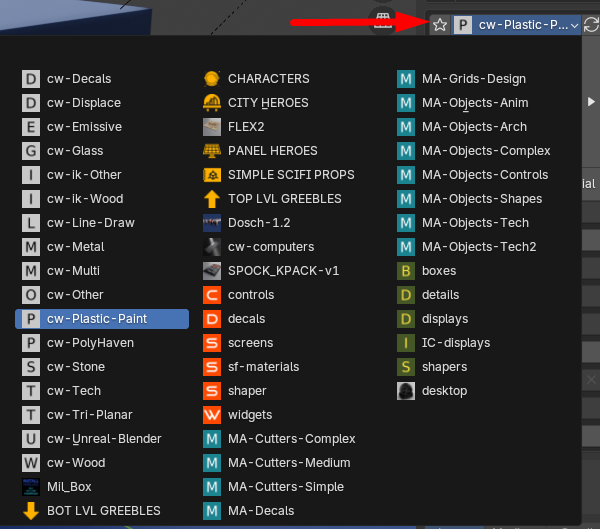
There are many KPACKS that come bundled with the System as shown above. Next, select a KPACK by clicking in the KIT OPS dropdown KPACK selector.
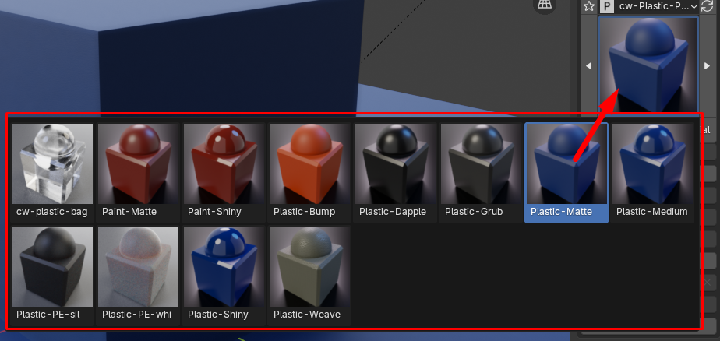
Next, click the thumb of the KPACK and choose a material (material icons may change with newer version of KIT OPS)
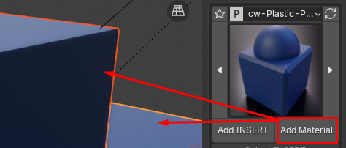 |
Then just press the Add Material button on KIT OPS. |
|---|
Tips and Techniques
When you add a material to an object, Kit Ops first checks if that material already exists in your scene. If it does, Kit Ops uses the existing material, which helps optimize scene materials. However, if you specifically want to add a new instance of a material, you can do so by holding down the Control key when you click “add material.”
Additionally, if you add a material to the scene when no object is selected, the material will still be added to the scene.
Extra Utils
Kit Ops Pro comes with an additional add-on called “extrautils” that offers several useful functions. For the full add-on documentation, see the KIT OPS Extra Utils manual.
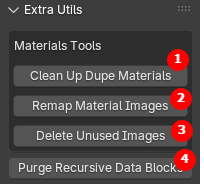 |
Clean Up Dupe Materials - finds duplicate materials by name, remaps their users and removes those duplicates. For instance: if you have a material gold and you duplicate it by copy/pasting or bringing it in from Asset Browser then you will have a new material gold.001. Remap Material Images - finds duplicate images (in materials only) by binary checksum and remaps their users. This means even if an image in a material is named differently, if it is identical, it will be remapped. Delete Unused Images - finds the material only images which now are orphans (0 users) and deletes them. Typically you use this after Remap Material Images. Purge Recursive Data Blocks - will purge from the scene any materials that aren’t being used. Saves memory. |
|---|
FAQ
Can you use it with UV mapped objects?
Yes! If your objects are UV mapped, it works even better.
Are these procedural materials?
No. They are carefully curated photo materials designed to tile without repeating.
Does it come with KIT OPS?
Yes, the free version of KIT OPS is included.
What if I already have KIT OPS PRO?
It works with KIT OPS PRO as well.
Gallery
Getting Support
For additional support, visit our Discord: https://cw1.me/discord
See the eevee-cycles-materials channel there.