(The Upgrade for QUICK SHOT)
DOCUMENTATION
by Chipp Walters
Programmed by Anthony Aragues and Ahmed Ali
Design by Chipp Walters and Anthony Aragues
Thanks to A
WHAT
QSHOT2 - Non-Destructive Multiple Camera Shot Setup with Simple Driver Animations
QSHOT2 is an upgrade to the very successful QUICK SHOT addon for Blender 3.0+.
QSHOT2 is an addon for Blender 3.0+ which allows users to quickly create camera animations for advertising, visualization or just for fun. The new version has all new driver animations which are easy to apply to any object in your scene. It’s goal is to streamline the creation of animations and provide a non-destructive model for editing the timeline.
The goal is to create a very simple addon which should be easily understood and used by novice and experienced users alike.
So, the premise is that you can create several “from Point A to Point B” camera animations. These are called “SHOTS.” Each shot has a duration in frames, and a defined motion interpolation (linear or ease in/out).
You can stack them on top of each other to create a timeline animation so that when you “Render Animation” they will all render as a single animation. At any time you can change the duration, motion interpolation or even the order of the shots.
You can also create driver animations for any object in your scene. So, what are driver animations? It is now possible to add driver equations to any of the object transformation values. So, for instance, if you add a linear animation to the Z axis rotation for a control panel knob, it will begin turning as soon your animation starts and continue turning until it is over. And, if you like, you can set the start and stop frames as well. You can do this for any access as well as add drivers to both the location and scale values as well. Furthermore, you can also add a pulse driver which in the case of our knob example would have the knob turn one direction, and then turned back the other direction and continue until you tell it to stop.
Once you are satisfied with your animation, you can render it all at once, and because QSHOT2 animates cameras, you can use it with EEVEE and the new faster Cycles.
WHO
Who is QSHOT2 for? It’s for anyone who wants to streamline their animation workflow and do it quickly. It’s especially for users who want very quick visualizations of their models.
Who is QSHOT2 not for? QSHOT2 is not intended to be a full-blown and complete animation system for Blender. It is focused towards users who want to create very quick animations and not spend a lot of time key framing objects and tediously adding multiple cameras.
WHY
Since Blender 2.8 introduced EEVEE, and now with 3.0 and the new Cycles, it’s become much easier to render out animations because:
- The animation previews are so much more realistic and realtime.
- The animations render in a fraction of the time they would’ve taken previously.
And with the newly increased interest in creating animations, we wanted to create a tool that helped do this quickly. QSHOT2 was originally inspired by Unity’s cinemachine, where you just drop cameras in a scene and Unity just figures out all the paths to match.
The goal was to create a non-destructive workflow around camera animation.
WHEN
Object Animation Drivers
- An object needs constant movement (Like a spinning propeller)
- You need a quick method of animation without keyframes
- There’s a simple one time transform
HOW
Object Animations
New in QSHOT2 is the ability to rapidly create simple object animations using formula expressions as transformation values. These are called drivers. You can apply drivers to any objects and a given object can have more than one driver as well. You can copy and paste drivers from one object to another.
Once an object has drivers placed on them, they can also be saved as KIT OPS INSERTS. Then, when the INSERT is placed in the scene, the animation will automatically come with it.
The Basic Object Animation Workflow
- Open the QSHOT2 addon in the N-Panel and scale it wide enough so you can see all columns.
- First select the object you wish to animate.
- Press the Add Driver button.
- Choose the driver action you wish to animate. You can choose from location, rotation, or scale.
- Choose the axis you wish to animate on. You can also choose to Flip the direction of the animation using the Flip checkbox.
- Next, press the spacebar to turn on the anim player and watch how your object animates. This will help you with the remainder of the settings.
- Adjust the motion, the start and stop frames, and the max limit for your animation. A stop frame set to zero indicates the animation will never stop.
- Press the Add Driver button to add another driver. You can also use the copy and paste buttons to copy drivers from one object to another.
Camera Animations
The current camera workflow is exactly as in the first version of QUICK SHOT.
How to use:
Tips:
So, here’s how it works. When you press ADD SHOT, it will create a camera and set it’s position just as it would if you had a camera and pressed CTRL+ALT+ Numpad 0.
And it will set the number of frames for the duration of that camera to the default 100.
It will create two keyframes, one at the beginning of the SHOT and one at the end.
And it will create a SHOT row as shown in the picture. You can create as many of these “SHOTS” as you like up to 16, with each subsequent shot placed below the last row.
If you press the IN button, it will set the timeline to the beginning point of that camera and select that camera. If the OUT button is pressed, it will set the time to the end of the SHOT and select the camera. This way the user is responsible for moving the camera around and setting the keygrame loc/rot for it.
Users can keyframe other features of the camera, such as DOF, FOV, but these may be removed when the QSHOT2 is updated, if the keyframe falls outside the frame range of the SHOT.
Everytime the duration, motion, or reorder is changed, the timeline is updated to reflect the change.
The Basic Camera Animation Workflow
- Find the QSHOT2 addon in the ‘N’ panel and display the interface
- Press the ADD SHOT button to create a new SHOT (you may need to expand the width of the interface).
- A new SHOT called “Shot 1” is created. This adds a camera to the scene called “Shot 1”
- Press the IN button for “Shot 1” to go to the IN keyframe (first) and camera “Shot 1” is automatically selected.
- Position the “Shot 1” camera as you wish, then press “Ctrl” while pressing the IN button– this sets the keyframe for the IN position.
- Press the OUT button for “Shot 1” to go to the OUT keyframe (last) and the camera “Shot 1” is automatically selected.
- Position the “Shot 1” camera as you wish, then press Ctrl + the OUT button – this sets the keyframe for the OUT position.
- At any time you can change the number of the frames for the camera, and the timeline is instantly updated for all SHOT cameras. The same is true for the MOTION Interpolation path.
- You can continue to add SHOT Cameras and repeat the above process.
- At any time you can delete a camera (x button) or resequence the camera by pressing the up down arrows.
INTERFACE
The interface is broken into two parts: Object Animations and Camera Animations. Both can be collapsed when not needed. Below is a screenshot of the interface along with the callouts describing the functions.
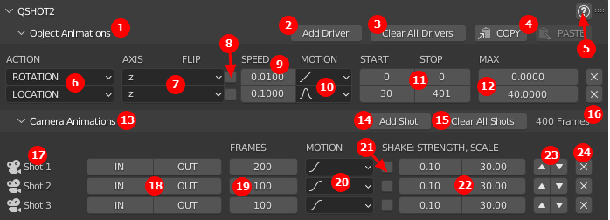
- OBJECT ANIMATIONS Section
- Adds a new driver to the selected object
- Clear all drivers for the selected object
- Copy the drivers for the selected object, then switch to a new object and paste. This allows you to easily create multiple same driver animations.
- Opens up this document in your browser.
- Actions for the Driver. You can choose from Rotation, Location and Scale.
- The axis for the Driver to act upon.
- Flip the direction of the Driver
- Adjust the speed of the Driver
- Toggle the motion of the Driver from Linear (one direction) to Pulse (one direction, then back to the other direction, and on and on).
- Start and Stop frames for the Driver. If Stop set to zero, the animation never ends.
- Maximum scale/limit for the driver.
- CAMERA ANIMATIONS Section
- Creates a new camera called “Shot 1”, “Shot 2”, etc.
- Erases all SHOT cameras.
- Total number of frames for the animation.
- Shot Camera List
- IN OUT buttons. When pressed, these buttons go to the IN (first) or OUT (last) keyframe for the respective camera AND selects the camera. Press Ctrl + IN or OUT to set a keyframe for that camera at the IN or OUT time. Press Ctrl + Shift on either button to copy the keyframe settings from the OTHER button.
- The number of frames for the camera SHOT.
- Either Linear or Ease In / Ease Out.
- Enable Camera Shake
- Camera Shake Settings
- Reordering arrows for SHOTS.
- Delete a given SHOT.
TIPS and TROUBLESHOOTING
Object Animation Drivers
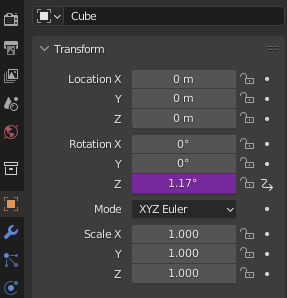
- Applied drivers can be found in the object’s transform properties. Drivers can quickly be distinguished by what’s highlighted.
- Object animations should be set from Frame 0. This is because animation drivers that use the frame such as location = frame*number need a frame that isn’t modified by the drivers to work in. The interface will guide you back to frame 0 to work with object animation drivers.
SUPPORT
For help, please visit us on the QSHOT2 channel on Discord:
http://cw1.me/discord