15
One-click styles
Render your Blender scenes as illustrations and manga backgrounds: clean or sketchy ink lines, screentone, solid blacks and crisp cast shadows — from the active camera or live in the viewport. Fifteen styles, one click each, and every part of a look stays yours to change. Built for comic and manga artists, illustrators, technical and archviz artists — anyone who wants the drawing, not the render.
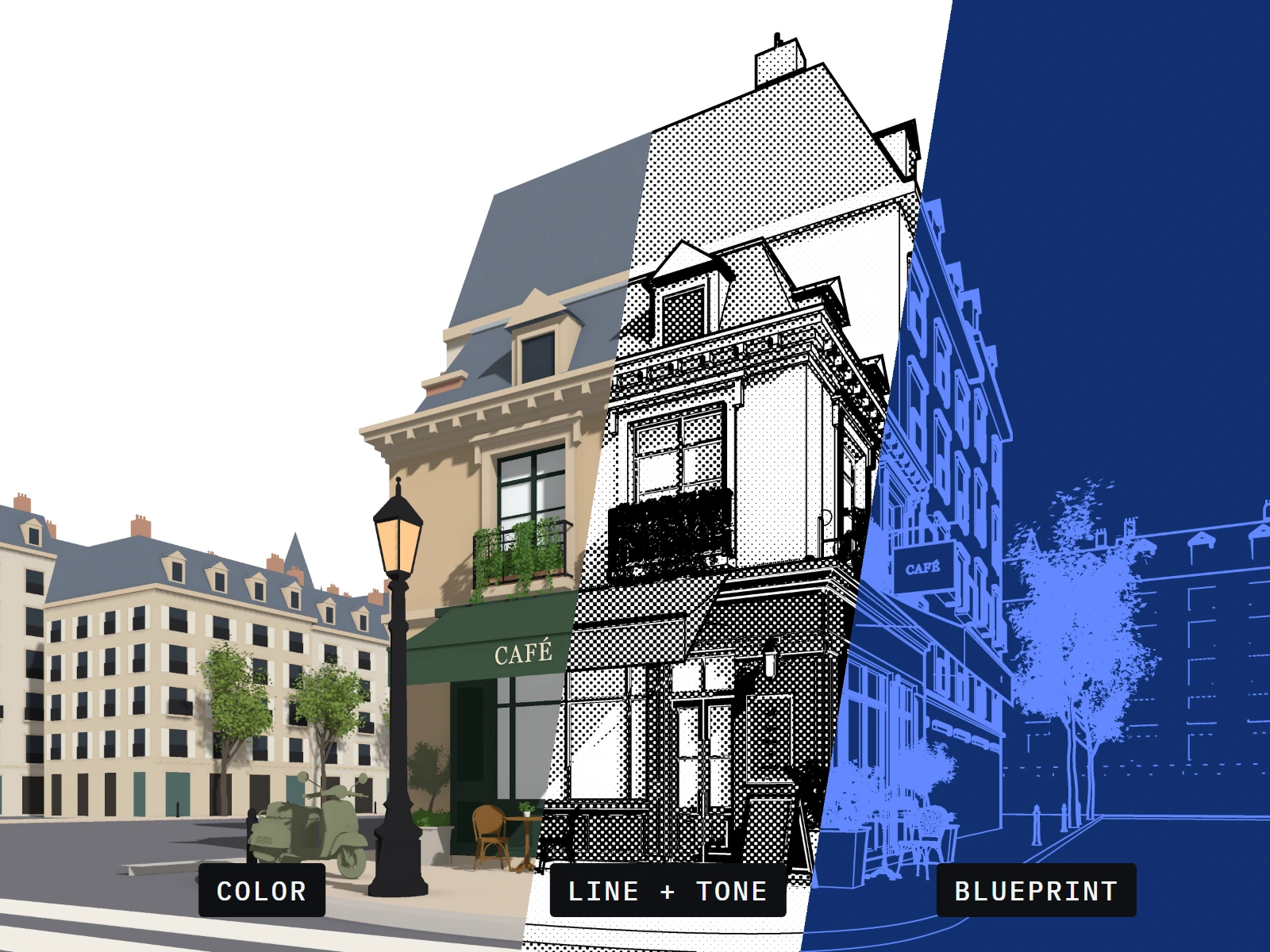
Switch any 3D Viewport to Rendered shading and Illustration Station draws live. Orbit, pan and zoom with the final look on screen; in camera view, lines, tone and pattern size match what F12 renders.
// rendered viewport, live — sketch style on the café scene
Illustration Station isn't a modifier stack or a compositor recipe. It's a complete render engine — it draws the scene itself on the GPU and turns it into line art and tone. Pick it in Render Properties, press F12, and get an illustration back.
// illustration station overview
 ILLUSTRATION STATION
Illustration Station renders the active camera and the Rendered viewport as ink lines, screentone, solid black, cast shadows and ambient occlusion. Stills render in a fraction of a second, animations render frame by frame like any other engine, and the viewport shows the same look while you work — no Freestyle, Line Art modifiers or Grease Pencil to set up.
The Style picker shows every look on the same scene. Click one, press F12.
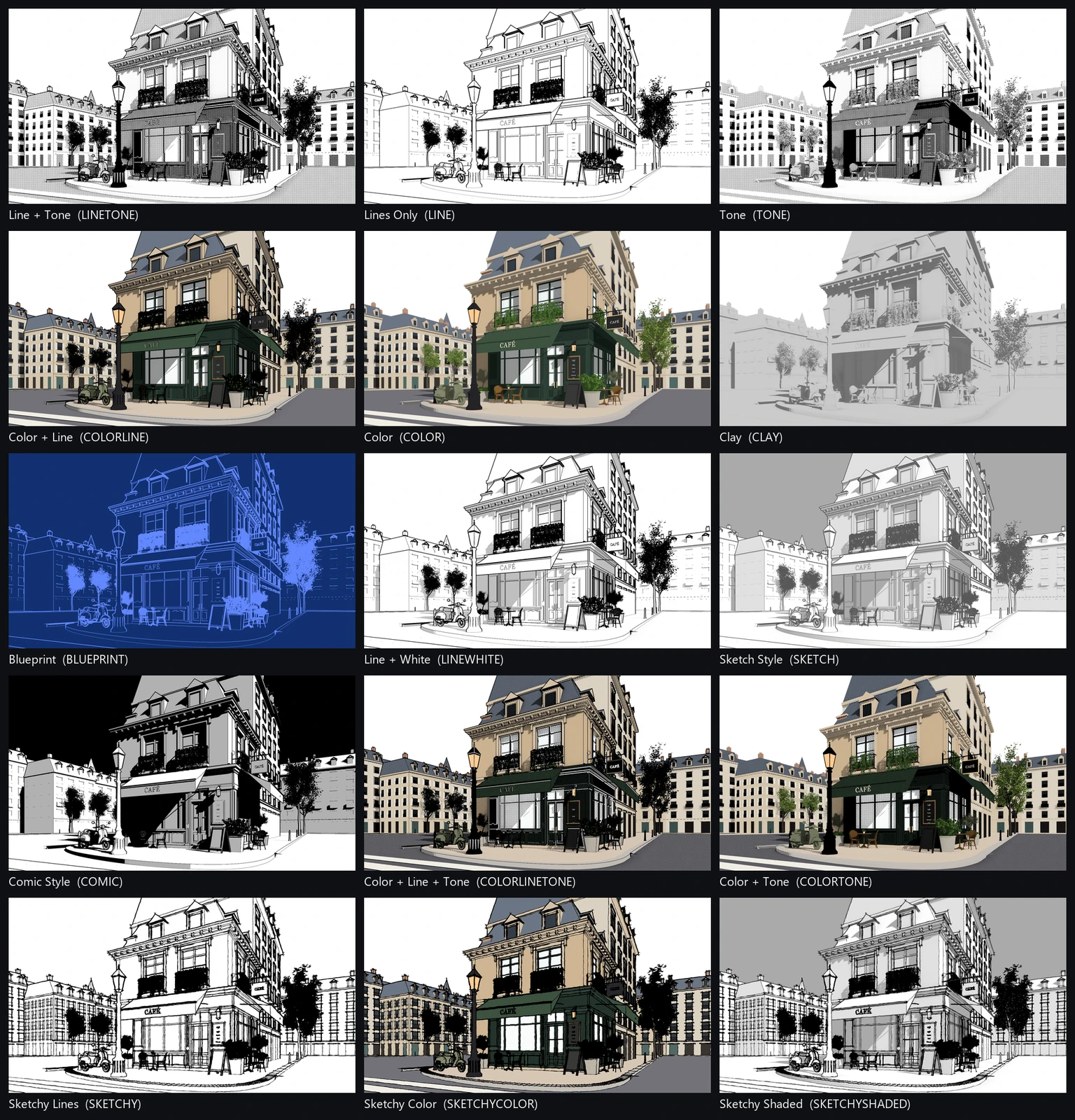
// all fifteen styles on the same scene
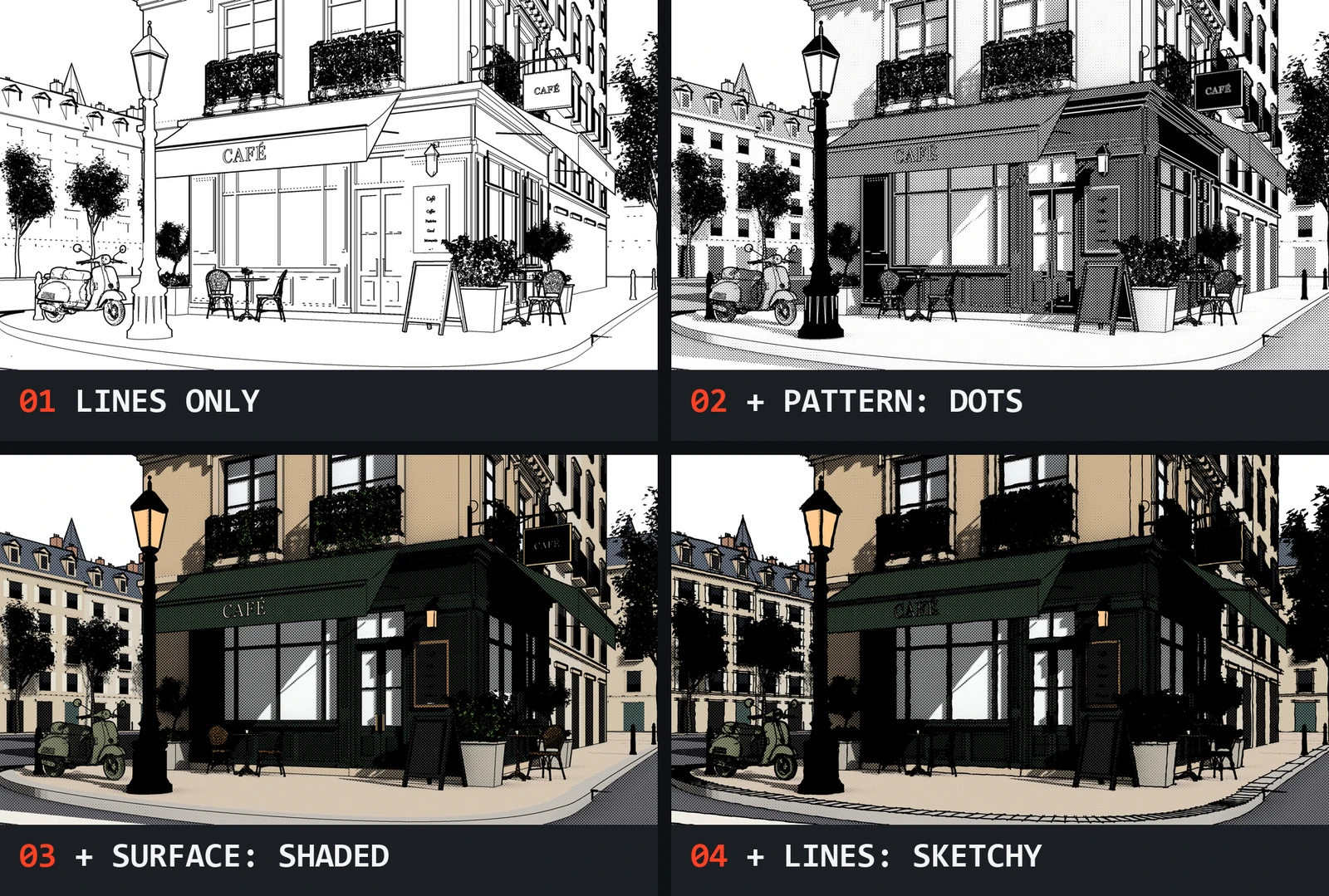
Every style is a starting point that fills in four choices, each at the top of its own panel. Change any one and the style keeps its name with a * — pick it again to go back.
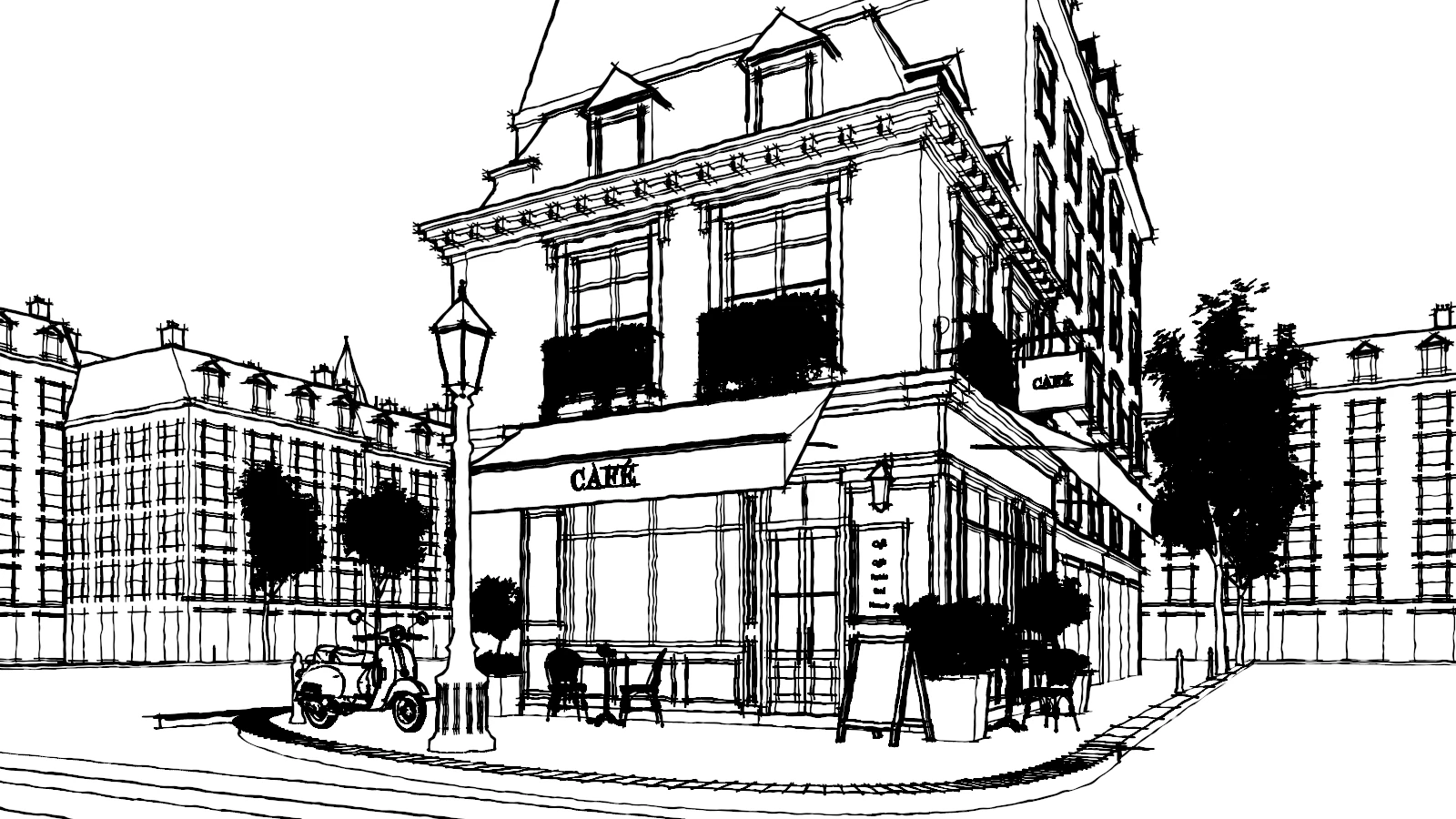 // sketchy lines
Set Line Style to Sketchy in any style that draws lines. Wobble, Wobble Size, double Strokes, cross lines that overshoot at corners and heavier Endpoints — the silhouettes are found on the GPU every frame.
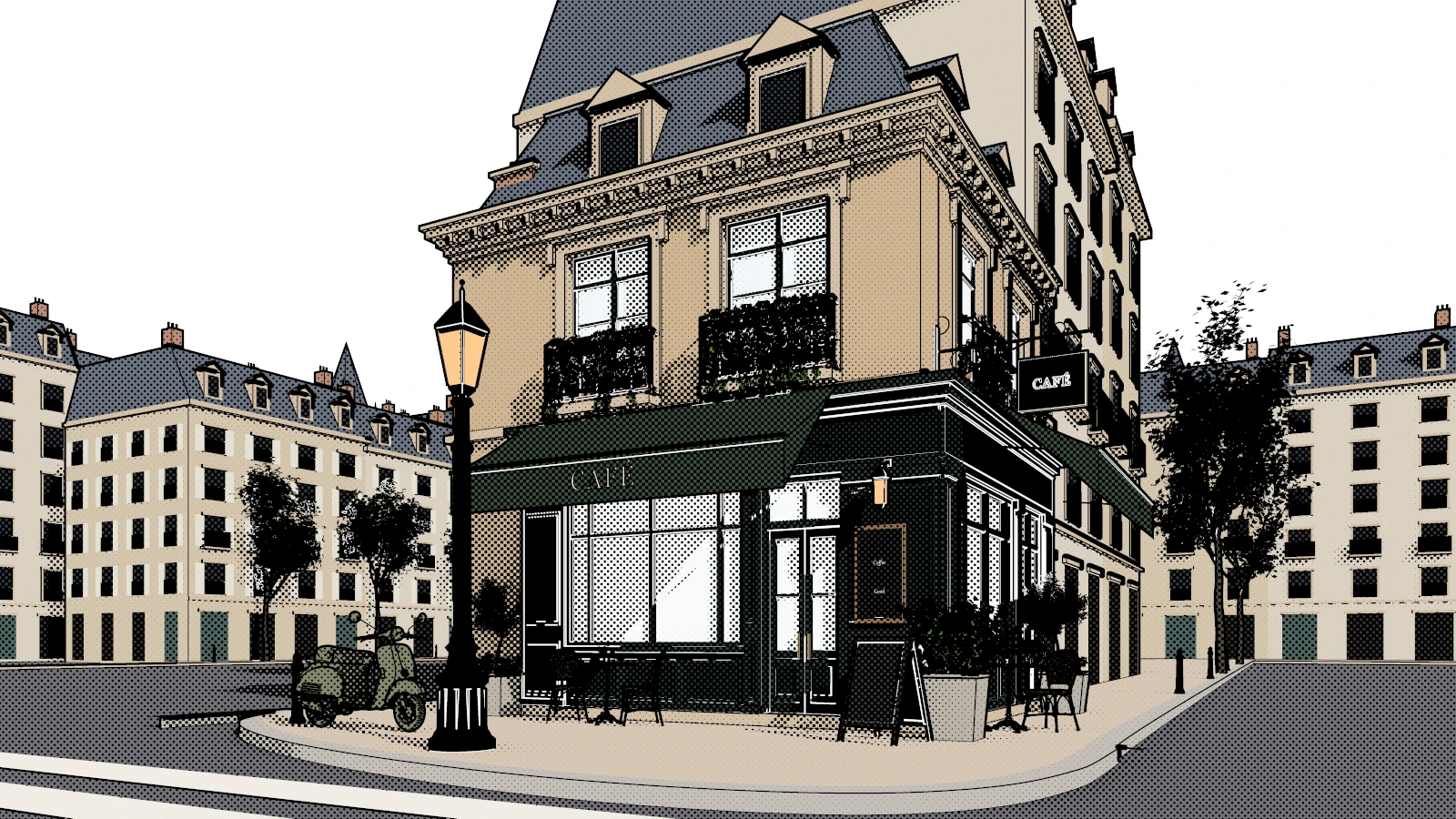 // color + line + tone
Flat or shaded material colors with ink lines, screentone dots and solid black on top. Textured materials get a fallback color in one click — Predominant picks each material's most common color for you.
Lines, tone, shade and color — drawn by one engine, tuned from one panel.
Dots, Lines, Cross Hatch, Sand and Flat Grey, anchored to the screen or to objects, with per-material Tone and Black Bias.
The darkest areas fill with solid black; cast shadows match an orthographic or perspective camera at any zoom.
Thick Lines for silhouettes, Thin Lines for inner edges, a Line Art-style Crease, and Screen Space for the same weight everywhere.
Two clean tones instead of a gradient, or a set number of stepped bands — cel-shaded looks without a single node.
Use the scene's sun, a custom direction, or up to eight of its own lamps — Sun, Point, Spot and Area — with falloff and spot cones.
Orbit, pan and zoom with the final look on screen. In camera view, lines, tone and pattern size match what F12 renders.
Transparent Paper puts the line work and tone on their own layer; Transparent Background works with every surface.
Image-textured materials render in one flat color. Predominant or Set Colors from Materials picks it from the texture for you.
Renders frame by frame like any engine. Object-anchored tone moves with objects and shadow edges don't flicker.
Both editions run the same engine with the same panels. Free shows every Pro setting with a padlock, so you can see exactly what Pro adds.
// upgrading installs Pro over Free — your settings and files are kept
No. Textures and node trees aren't evaluated at render time; a textured material renders in one flat fallback color. Predominant and Set Colors from Materials pick each material's most common color in one click.
No. Illustration Station renders images, like EEVEE and Cycles. Use Transparent Paper to get the line work on its own layer.
No. It's a complete render engine with its own Lines panel — Line Art's material settings have no effect on it.
No. The render is one Combined image; you can still run it through the compositor.
It draws through Blender's own GPU drawing. It's tested on Windows with OpenGL and Vulkan; macOS (Metal) hasn't been tested yet.
Install the Pro .zip the same way as Free. It replaces Free, and your settings and files are kept — scenes saved in a Pro style render in their own style again.
If you model in 3D but deliver in ink, Illustration Station renders the page for you.
Backgrounds in line and screentone, with solid blacks and crisp shadows.
Clean or sketchy line art to paint over, on its own transparent layer.
Lines Only, Blueprint and Line + White for drawings that read at a glance.
Clay and Sketch Style for checking composition and light, fast.
Frame-by-frame renders with tone that sticks to objects.
Designed by Chipp Walters — a 30-year industry veteran and the creator of KIT OPS and Simple Sketch Pro. Proven experience. Stellar support. Built for artists like you.
One charge, nothing auto-renews: Illustration Station Pro is yours to keep forever, with a full year of updates and developer support. Renew later for just $10/year, only when you want the latest.
This isn't a fire-and-forget asset drop. It's backed by first-class support for Blender customers since 2019 — an active Discord where a human answers, and a catalog of tools trusted by artists worldwide.
Fifteen styles, live in the viewport, a fraction of a second per still.